# Employee Scheduling (Java, Quarkus, Maven)
Schedule shifts to employees, accounting for employee availability and shift skill requirements.
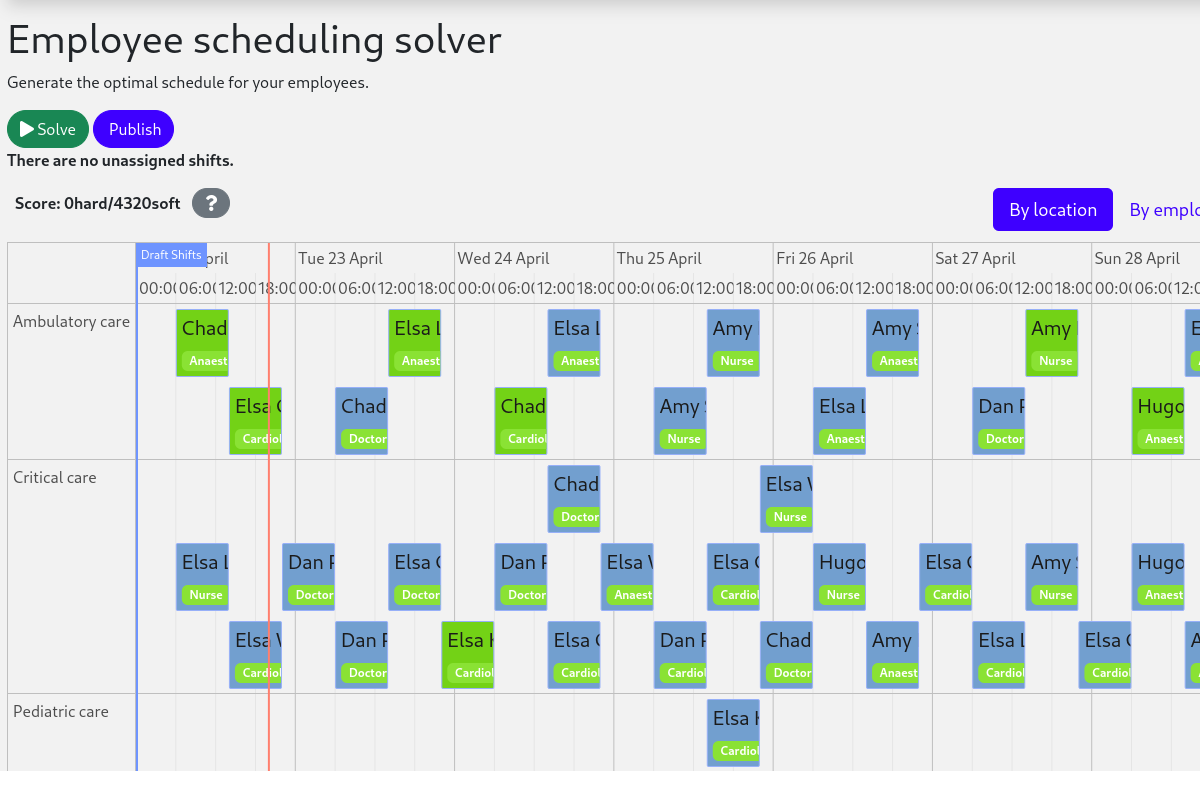
- [Run the application](#run-the-application)
- [Run the application with Timefold Solver Enterprise Edition](#run-the-application-with-timefold-solver-enterprise-edition)
- [Run the packaged application](#run-the-packaged-application)
- [Run the application in a container](#run-the-application-in-a-container)
- [Run it native](#run-it-native)
> [!TIP]
>  [Check out our off-the-shelf model for Employee Shift Scheduling](https://app.timefold.ai/models/employee-scheduling/v1). This model supports many additional constraints such as skills, pairing employees, fairness and more.
## Prerequisites
1. Install Java and Maven, for example with [Sdkman](https://sdkman.io):
```sh
$ sdk install java
$ sdk install maven
```
## Run the application
1. Git clone the timefold-quickstarts repo and navigate to this directory:
```sh
$ git clone https://github.com/TimefoldAI/timefold-quickstarts.git
...
$ cd timefold-quickstarts/java/employee-scheduling
```
2. Start the application with Maven:
```sh
$ mvn quarkus:dev
```
3. Visit [http://localhost:8080](http://localhost:8080) in your browser.
4. Click on the **Solve** button.
Then try _live coding_:
- Make some changes in the source code.
- Refresh your browser (F5).
Notice that those changes are immediately in effect.
## Run the application with Timefold Solver Enterprise Edition
For high-scalability use cases, switch to [Timefold Solver Enterprise Edition](https://docs.timefold.ai/timefold-solver/latest/enterprise-edition/enterprise-edition), our commercial offering.
[Contact Timefold](https://timefold.ai/contact) to obtain the credentials required to access our private Enterprise Maven repository.
1. Create `.m2/settings.xml` in your home directory with the following content:
```xml
...
timefold-solver-enterprise
my_username
my_password
...
```
See [Settings Reference](https://maven.apache.org/settings.html) for more information on Maven settings.
2. Start the application with Maven:
```sh
$ mvn clean quarkus:dev -Denterprise
```
3. Visit [http://localhost:8080](http://localhost:8080) in your browser.
4. Click on the **Solve** button.
Then try _live coding_:
- Make some changes in the source code.
- Refresh your browser (F5).
Notice that those changes are immediately in effect.
## Run the packaged application
When you're done iterating in `quarkus:dev` mode, package the application to run as a conventional jar file.
1. Compile it with Maven:
```sh
$ mvn package
```
2. Run it:
```sh
$ java -jar ./target/quarkus-app/quarkus-run.jar
```
> **Note**
> To run it on port 8081 instead, add `-Dquarkus.http.port=8081`.
3. Visit [http://localhost:8080](http://localhost:8080) in your browser.
4. Click on the **Solve** button.
## Run the application in a container
1. Build a container image:
```sh
$ mvn package -Dcontainer
```
2. Run a container:
```sh
$ docker run -p 8080:8080 $USER/employee-scheduling:1.0-SNAPSHOT
```
## Run it native
To increase startup performance for serverless deployments, build the application as a native executable:
1. [Install GraalVM and `gu` install the native-image tool](https://quarkus.io/guides/building-native-image#configuring-graalvm).
2. Compile it natively. This takes a few minutes:
```sh
$ mvn package -Dnative -DskipTests
```
3. Run the native executable:
```sh
$ ./target/*-runner
```
4. Visit [http://localhost:8080](http://localhost:8080) in your browser.
5. Click on the **Solve** button.
## More information
Visit [timefold.ai](https://timefold.ai).
[Check out our off-the-shelf model for Employee Shift Scheduling](https://app.timefold.ai/models/employee-scheduling/v1). This model supports many additional constraints such as skills, pairing employees, fairness and more.
## Prerequisites
1. Install Java and Maven, for example with [Sdkman](https://sdkman.io):
```sh
$ sdk install java
$ sdk install maven
```
## Run the application
1. Git clone the timefold-quickstarts repo and navigate to this directory:
```sh
$ git clone https://github.com/TimefoldAI/timefold-quickstarts.git
...
$ cd timefold-quickstarts/java/employee-scheduling
```
2. Start the application with Maven:
```sh
$ mvn quarkus:dev
```
3. Visit [http://localhost:8080](http://localhost:8080) in your browser.
4. Click on the **Solve** button.
Then try _live coding_:
- Make some changes in the source code.
- Refresh your browser (F5).
Notice that those changes are immediately in effect.
## Run the application with Timefold Solver Enterprise Edition
For high-scalability use cases, switch to [Timefold Solver Enterprise Edition](https://docs.timefold.ai/timefold-solver/latest/enterprise-edition/enterprise-edition), our commercial offering.
[Contact Timefold](https://timefold.ai/contact) to obtain the credentials required to access our private Enterprise Maven repository.
1. Create `.m2/settings.xml` in your home directory with the following content:
```xml
...
timefold-solver-enterprise
my_username
my_password
...
```
See [Settings Reference](https://maven.apache.org/settings.html) for more information on Maven settings.
2. Start the application with Maven:
```sh
$ mvn clean quarkus:dev -Denterprise
```
3. Visit [http://localhost:8080](http://localhost:8080) in your browser.
4. Click on the **Solve** button.
Then try _live coding_:
- Make some changes in the source code.
- Refresh your browser (F5).
Notice that those changes are immediately in effect.
## Run the packaged application
When you're done iterating in `quarkus:dev` mode, package the application to run as a conventional jar file.
1. Compile it with Maven:
```sh
$ mvn package
```
2. Run it:
```sh
$ java -jar ./target/quarkus-app/quarkus-run.jar
```
> **Note**
> To run it on port 8081 instead, add `-Dquarkus.http.port=8081`.
3. Visit [http://localhost:8080](http://localhost:8080) in your browser.
4. Click on the **Solve** button.
## Run the application in a container
1. Build a container image:
```sh
$ mvn package -Dcontainer
```
2. Run a container:
```sh
$ docker run -p 8080:8080 $USER/employee-scheduling:1.0-SNAPSHOT
```
## Run it native
To increase startup performance for serverless deployments, build the application as a native executable:
1. [Install GraalVM and `gu` install the native-image tool](https://quarkus.io/guides/building-native-image#configuring-graalvm).
2. Compile it natively. This takes a few minutes:
```sh
$ mvn package -Dnative -DskipTests
```
3. Run the native executable:
```sh
$ ./target/*-runner
```
4. Visit [http://localhost:8080](http://localhost:8080) in your browser.
5. Click on the **Solve** button.
## More information
Visit [timefold.ai](https://timefold.ai).